How to set up rush and recruitment
Rush
Set up rush in Greek Connect before your first event: permissions, the public application and QR code, voting, and bids, in the order a rush chair works.
Greek Connect keeps your whole recruitment process in one place, from the first QR code scan at an info night to the bid your new members accept. Most of the work happens before rush starts, so set it up a week or two ahead of your first event.
This guide says "rush" and "rushee". If your chapter uses "recruitment" and "PNM", you can switch the wording across the app in the first step.
1. Choose your terminology
Go to Admin, open Chapter setup, and choose Rush terminology. Pick Rush / Rushee or Recruitment / PNM. The choice renames the sidebar, page titles, notifications, and the title of your public application form. Only chapter admins can change it.
While you're in Chapter setup, check that the Rush tile is turned on under Features. It's on by default.
2. Give your rush team access
Go to Admin, open Roles, edit a role, and scroll to the Rush section. There are three levels:
- None: can't see rush at all
- User: can see rushees, leave feedback, and vote. Most members need this, and the Member role has it by default.
- Admin: can add rushees, edit the class and its settings, and see votes
Give Admin to the role your rush chair and committee hold. Chapter admins always have full access.
3. Create the rush class
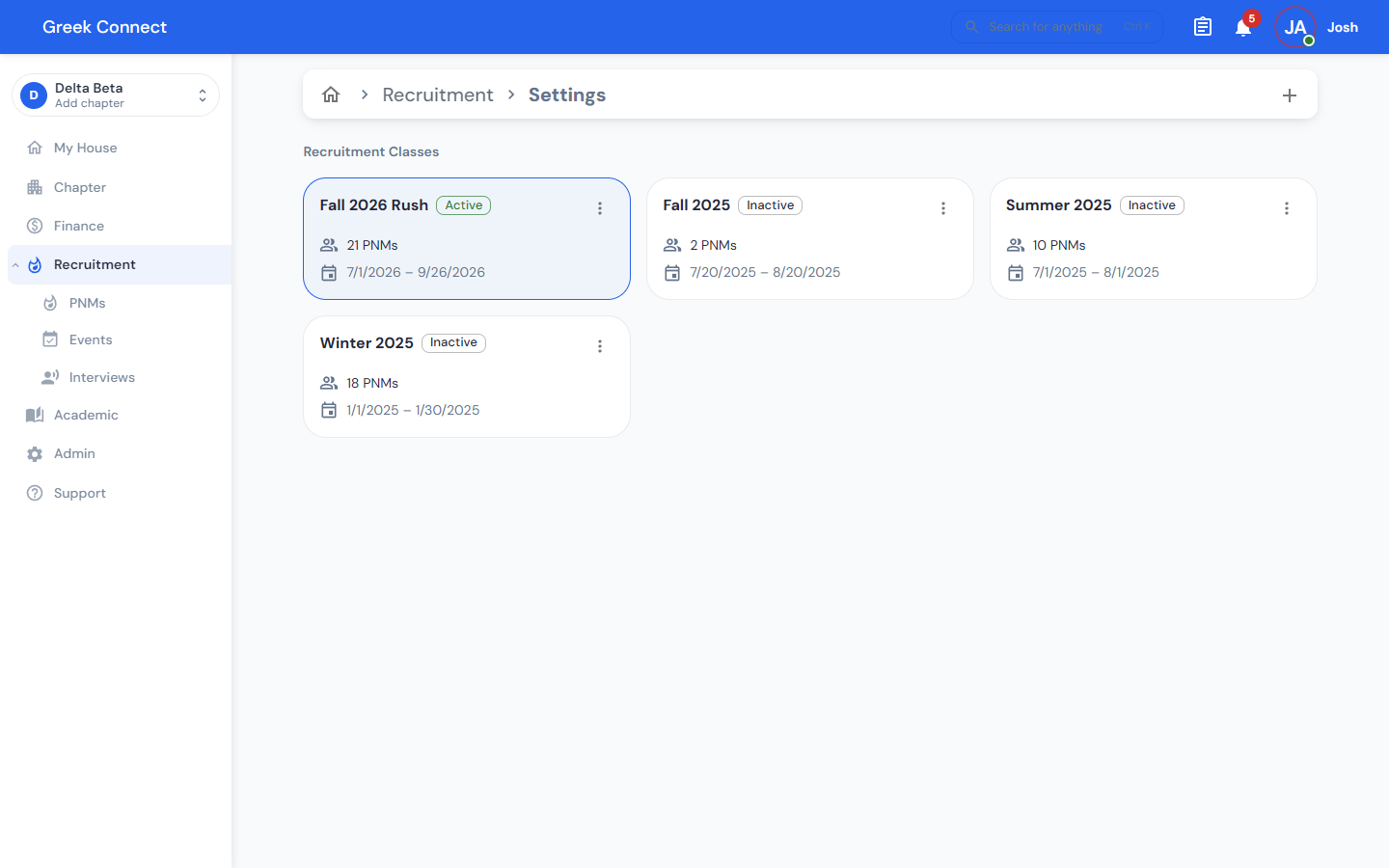
A class is one recruitment period, like "Fall 2026". Open Rush from the sidebar, open the ⋮ menu at the top of the page, choose Settings, and tap the + button. If your chapter has no active rush yet, you'll also see Create New Rush on the Rush page.
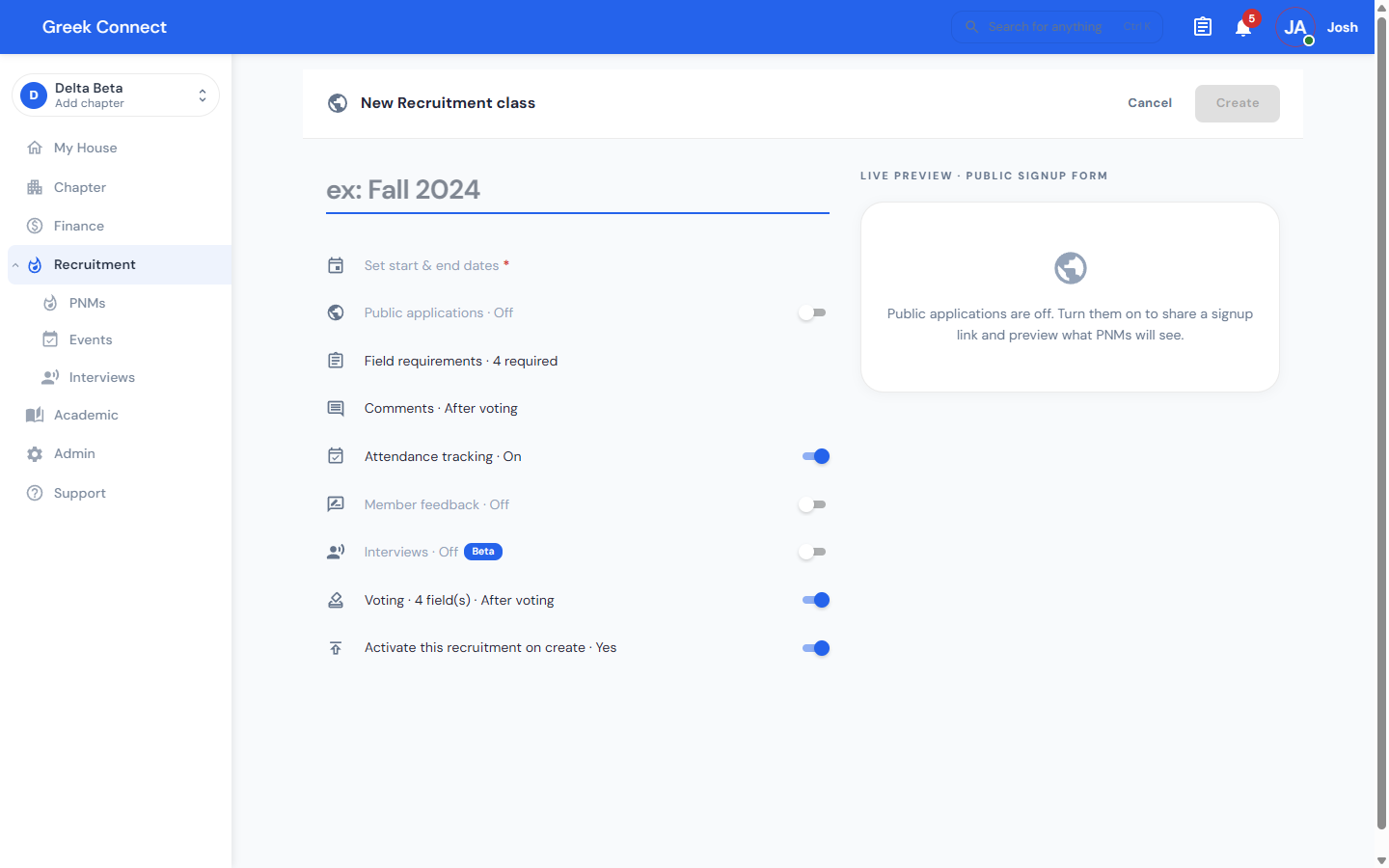
Fill in:
- Name and Dates. The dates decide which events count toward each rushee's attendance.
- Comments: who can comment on rushees. With the default, After voting, members can comment only once they've voted on that rushee.
- Attendance tracking: on by default. Leave it on so every rushee's profile shows which rush events they came to.
- Member feedback: turn it on to collect structured notes from members who talked to a rushee. You can add up to 10 questions as text, a 1 to 10 slider, or a yes/no checkbox.
- Voting: choose what members vote on. The defaults are Academics, Philanthropy, and Involvement sliders plus a Bid checkbox, and you can add up to six fields. Under Who can view results, pick Admins only, After voting, or Everyone. Rush admins can always see results.
Leave Activate this rush on create set to Yes. A chapter has one active class at a time, and the Rush page, the public application, and events all use the active one.
Plan the settings before rush starts. Only the active class can be edited, and turning off Member feedback or Interviews later permanently deletes the feedback already collected.
4. Open the public application
With the public application, rushees fill out a form on their phone and their profile is created for you, so nobody has to type names in after an event.
In the class settings, turn on Public applications and tap Generate ID (or type your own). You'll get a link like greekconnect.app/apply/your-id. From here you can also:
- upload a Form Logo
- add up to 20 Custom Rushee Questions, as short text, paragraph, dropdown, multiple choice, or checkboxes
- set each standard field (phone, year, hometown, photo, resume, and more) to Hidden, Optional, or Required under Field requirements. First name, last name, and email are always required.
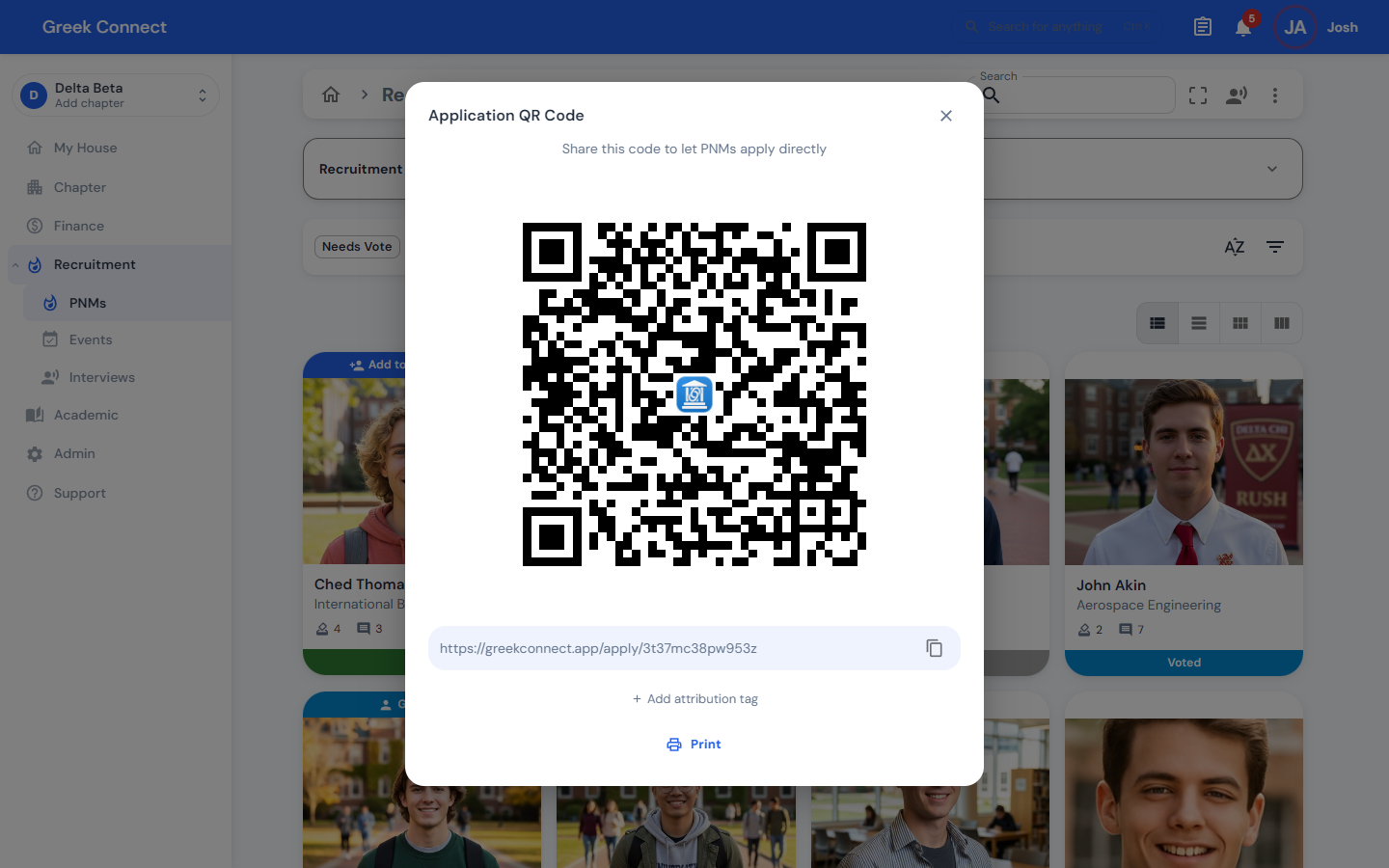
Save, then go back to the Rush page and tap QR Code. You can copy the link, print a one-page flyer from the web app, or tap Add attribution tag to make a separate code for each event, such as "Fall BBQ" or "Info Night". Tagged signups show where each rushee came from in your end-of-rush report.
Every member can open the QR code, so anyone tabling on campus can pull it up. New applications show up under the QR Signups filter.
5. Add rushees who didn't apply
- Add: create one rushee by hand with their name, year, major, contact info, photo, resume, and how they heard about you.
- Import Rushees: upload a CSV. It needs first, last, and year columns, and can also include email, phone, major, hometown, and source. Tap Download Example for a template. Rows with an email that's already in the class are skipped.
Both are in the ⋮ menu on the Rush page, and both are available to rush admins.
6. Run your rush events
Create each event on the calendar with the Rush category. Rush events inside the class dates are listed under Rush, then Events, and count toward attendance.
With public applications on, calendar admins can open a Rush Application Sign-Up QR code on the event. Returning rushees enter their email to check in, and new ones fill out the application. Their signup is tagged with the event. Members can also tap Mark Present on a rushee's profile.
Assign each rushee a Chapter Contact on their profile. That member gets a notification and owns the follow-up.
7. Vote and give feedback
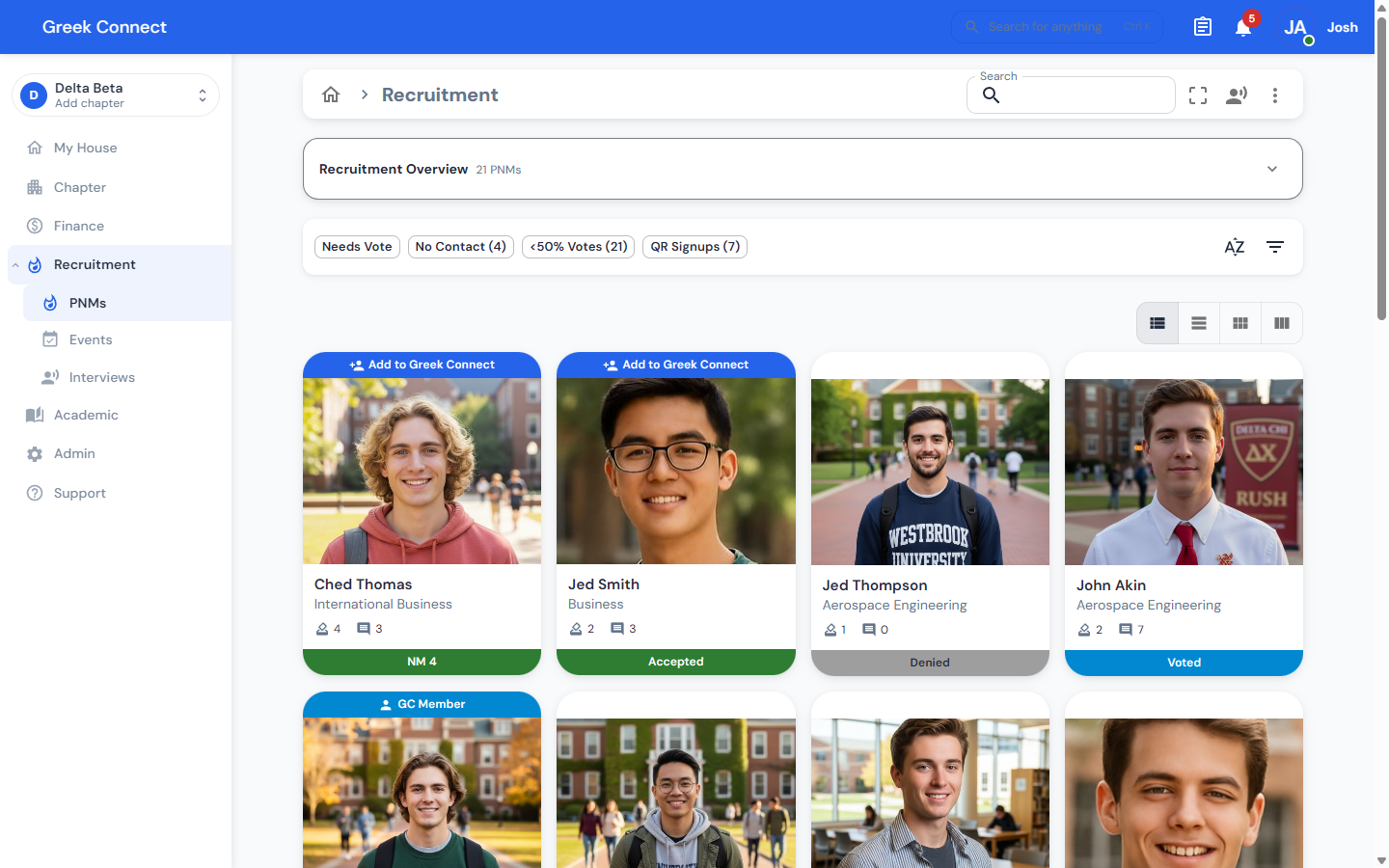
Members open a rushee's profile to vote on the Voting tab, leave notes on the Feedback tab, and comment. On the Rush page, the Needs Vote, No Contact, and <50% Votes filters show which rushees still need attention.
Switch to Kanban view to see every rushee by bid status. Rush admins can use Summarize Feedback on a rushee to get an AI summary of what members wrote.
Interviews (beta)
If your chapter runs interviews, turn on PNM Interviews under Admin, then Beta features. Then open the class settings and set up interview rounds, feedback questions, and whether members can schedule their own interviews. The Interviews page lets rush admins assign interviewers and send reminders, and every member can see their own interviews under My Interviews.
8. Send bids
Before your bid meeting, open the Live Dashboard from the ⋮ menu on the Rush page for a snapshot of the class.
Bid status moves through Voted, Received (called Bid Sent in Kanban), then Accepted, Rejected, or Denied. A rushee has to be marked Voted before you can set anything else. Change the status on their profile, or drag their card in Kanban view.
When a rushee accepts, tap Add Member on their profile. Enter their email and tap Invite, and they're added to your chapter as a member. A chapter admin has to send the invite.
9. Wrap up
- Open the Summary Report for final outcomes, average events attended, and a breakdown by source and chapter contact. You can compare it to a past class and download it as a PDF.
- When rush is over, go to Settings, open the menu on the class, and choose Deactivate. This closes the public application link. The class and its rushees stay in your list, so next year's chair can look back at them.
If you'd like a checklist to follow, the Run Rush end to end playbook under Admin, then Playbooks, walks through these steps and links to each screen.