How to master messages and group chats
Messages
Set up chapter group chats and event chats in Greek Connect, and decide who can post in each, so announcements actually get read instead of buried.
Most chapters end up with one giant group chat where the formal date gets lost between memes. In Greek Connect, officers can split that into smaller chats with a clear purpose. Membership can follow member status, so nobody has to add each new member by hand, and each chat can limit who is allowed to post.
Direct messages and group chats
Open Messages from the sidebar, or the bottom tab on mobile.
- Direct messages: any member can start one. Search for a name in Search conversations or members... and choose Start conversation.
- Group chats: you need the Messages Create or Admin permission, which you grant on the Roles page. Chapter admins always have it. Tap the New group chat icon next to the search bar.
Use the chips at the top of the list to filter by Unread, DMs, Groups, or Events. Pinned chats stay at the top.
Create a group chat
Before you make a chat, answer two questions: who belongs in it, and who should be able to post?
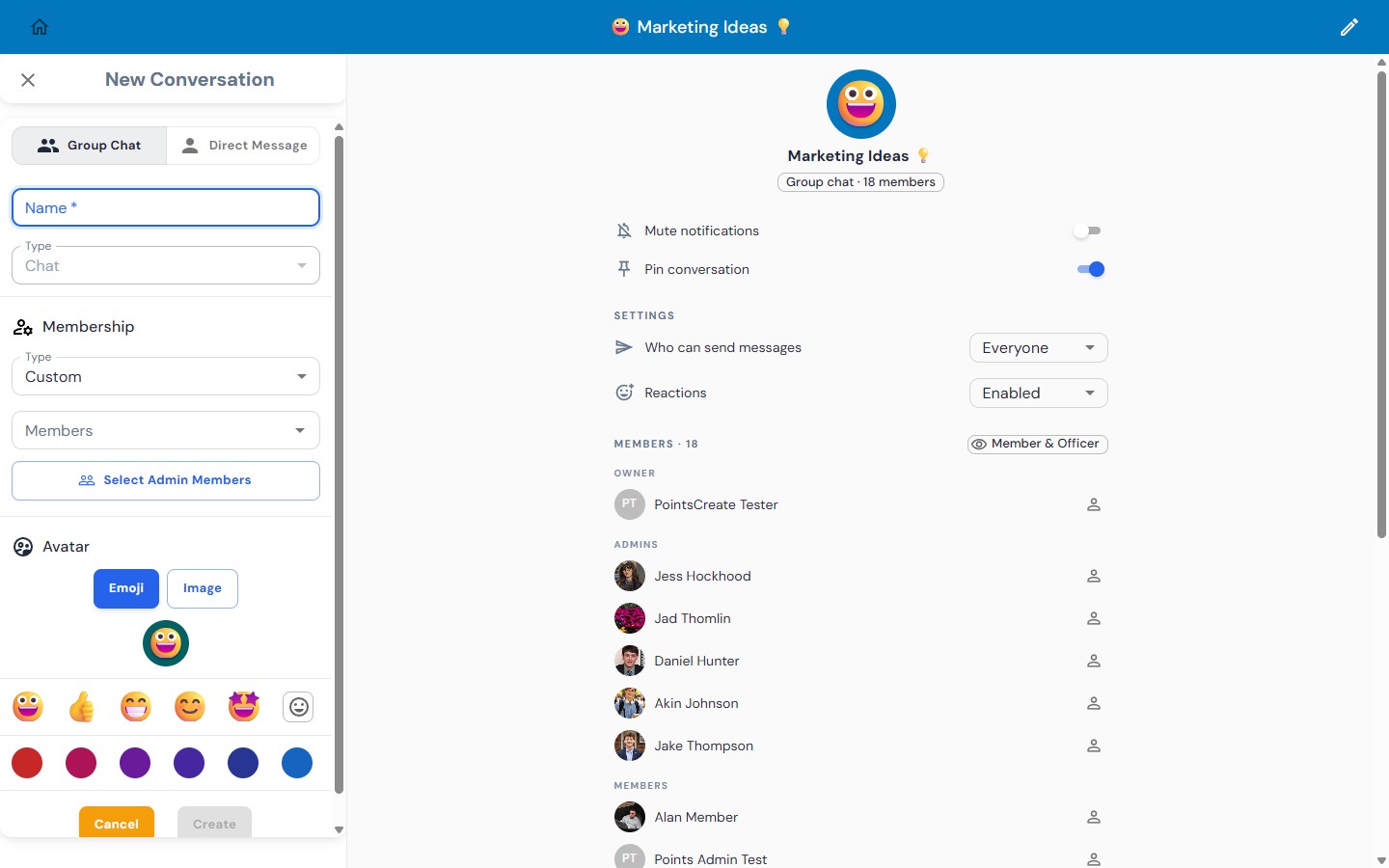
Name and avatar
Give the chat a short name (up to 32 characters) and an avatar. Pick an Emoji with a background color, or upload an Image. An emoji avatar makes a chat easy to spot in the list.
Membership
- Automatic: choose member statuses under Visibility, such as Officer or New Member, or one of your chapter's custom groups. Membership updates on its own as people's statuses change, so a "New Members" chat never needs cleaning up.
- Custom: add specific people under Members. Use it for a committee, a formal planning team, or a big/little family.
You can't change the membership type or the Automatic visibility list after the chat is created, so choose carefully. For a Custom chat, you can also pick chat admins now with Select Admin Members.
Tap Create. Everyone added gets a notification.
Set who can post
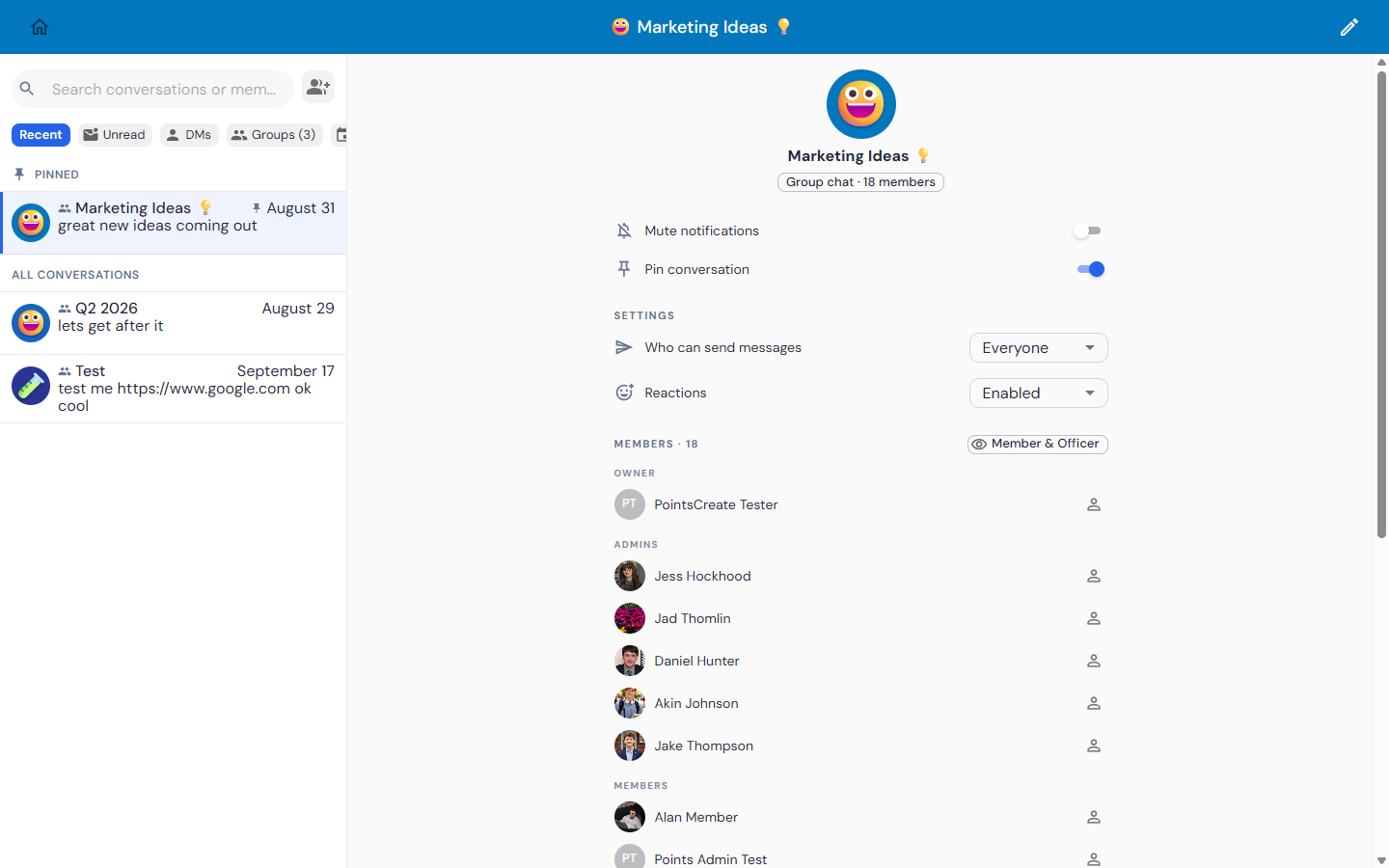
Open the chat and tap the info icon to see its details. The chat's owner and admins can change:
- Who can send messages: Everyone, Owner only, or Owner & admins
- Reactions: Enabled or Disabled
- Pin conversation: pins the chat to the top of the list for everyone in it
Set announcement chats to Owner & admins so updates don't get buried under replies. Give members at least one chat where Everyone can post, since that's where the chapter's social side happens.
Anyone can turn on Mute notifications for a chat they don't need alerts from.
Manage members
The details screen lists members under Owner, Admins, and Members. Icons next to each name let you:
- Promote to admin (shield icon) or Demote to member
- Promote to owner (crown icon, owner only)
- Remove from conversation (Custom chats only)
Use Add members to bring more people into a Custom chat. To change a chat's name or avatar, tap the pencil icon. The owner, or anyone with the Messages Admin permission, can delete the chat and all its messages.
People with the Messages Admin permission can see every conversation in the chapter, including direct messages. Keep that permission to the officers who need it.
Event chats
For a formal, retreat, or philanthropy event, create a chat tied to attendance. On the event page, go to the Manage tab, open Attendance, and choose Enable Event Chat. This requires Calendar admin access.
Members join the chat when they check in to the event and are removed if they're later marked not present. Under Auto-Delete Conversation, choose whether the chat is kept forever, deleted at the end of the event day, or deleted a set number of days later. The chat also appears on the event page under Event Chat.
Get more out of messages
- Attachments: tap the paperclip to share photos or PDFs (up to 20 MB), files from Drive, GIFs, or a chapter event.
- Polls: attach a quick poll with multiple-choice or checkbox answers, and make it anonymous if you like. Chat polls are separate from the Polls feature, so use them for quick questions like "Which night works for chapter dinner?"
- Threads: reply in a thread to keep a side conversation from taking over the main chat.
- @mentions: mention someone in the chat by name and they get a notification.
- Reactions: react to a message instead of replying "👍". Long-press a reaction to see who added it.
- Deleting messages: senders and chat admins can delete a message. It's replaced with "This message has been deleted".
Suggested setup
A good starting set for most chapters:
- Announcements: Automatic with every active status, and only Owner & admins can post
- Chapter chat: Automatic with every active status, and Everyone can post
- Officers: Automatic with the Officer status
- New members: Automatic with the New Member status, run by the new member educator
- Committees: one Custom chat per committee
- Event chats, turned on for events that need day-of coordination