How to make a points system
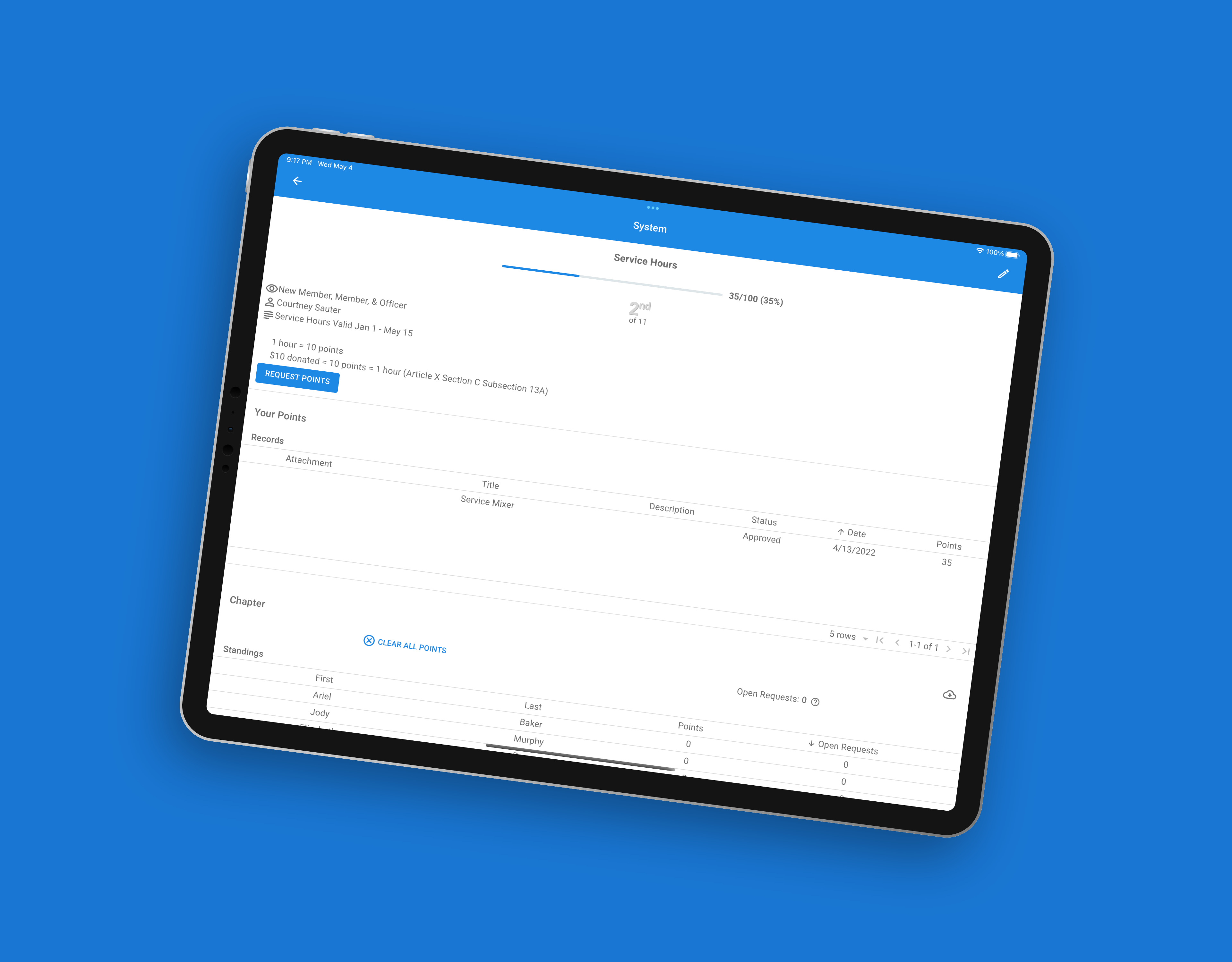
Points & Service Hour Tracking
Build a points system for service hours, study hours, attendance, or fines. Award points automatically from events and approve what members log themselves.
Most chapters track some kind of points, and a lot of them still do it in a spreadsheet that one officer updates when they remember to. Greek Connect keeps the total in the app, so members can check their own standing instead of texting the scholarship chair to ask how many hours they have.
Create the system
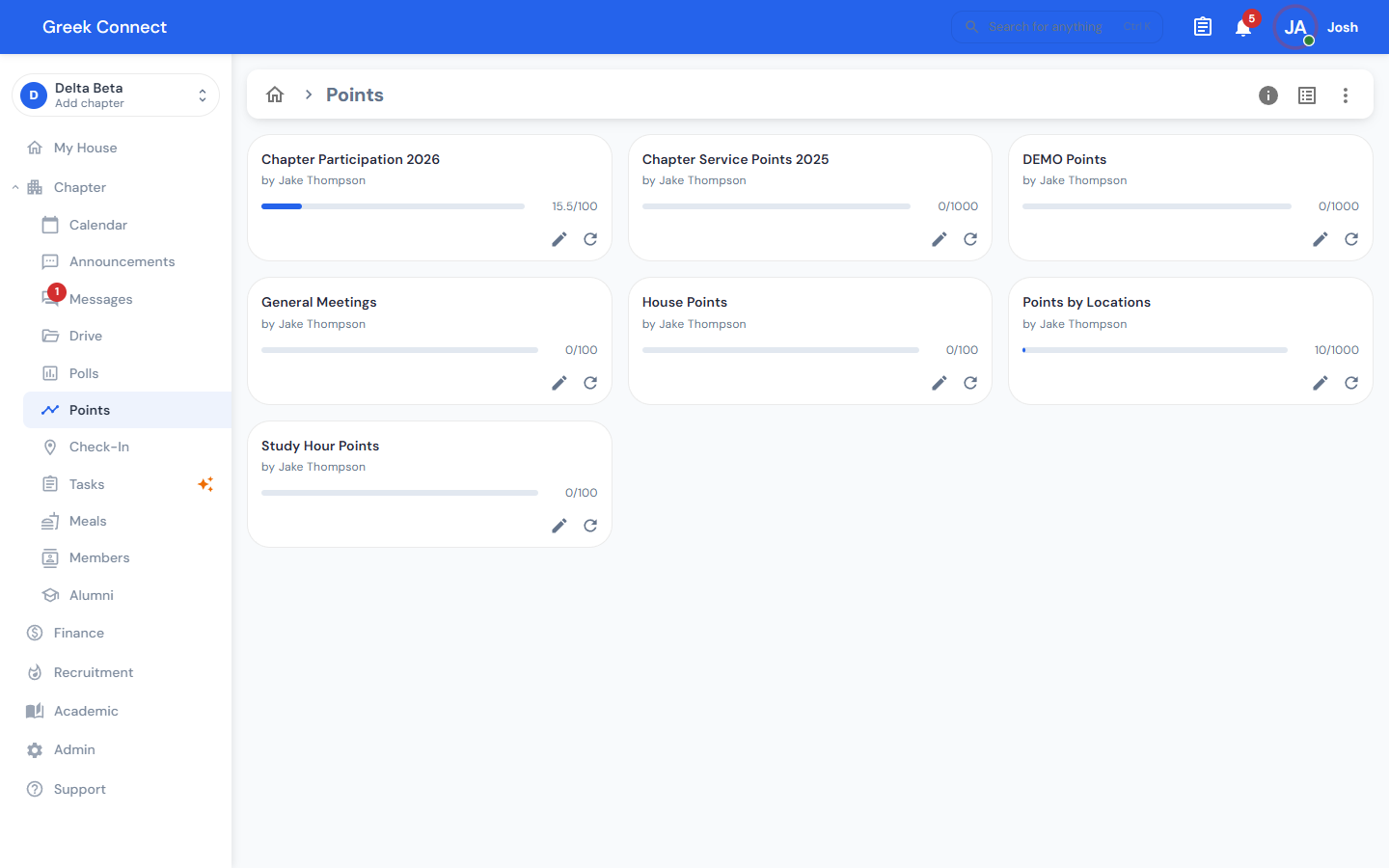
Open Points from the sidebar (under Chapter), open the ⋮ menu at the top of the page, and choose Add. You need the Points Create or Admin permission to see it. Chapter admins always have it.
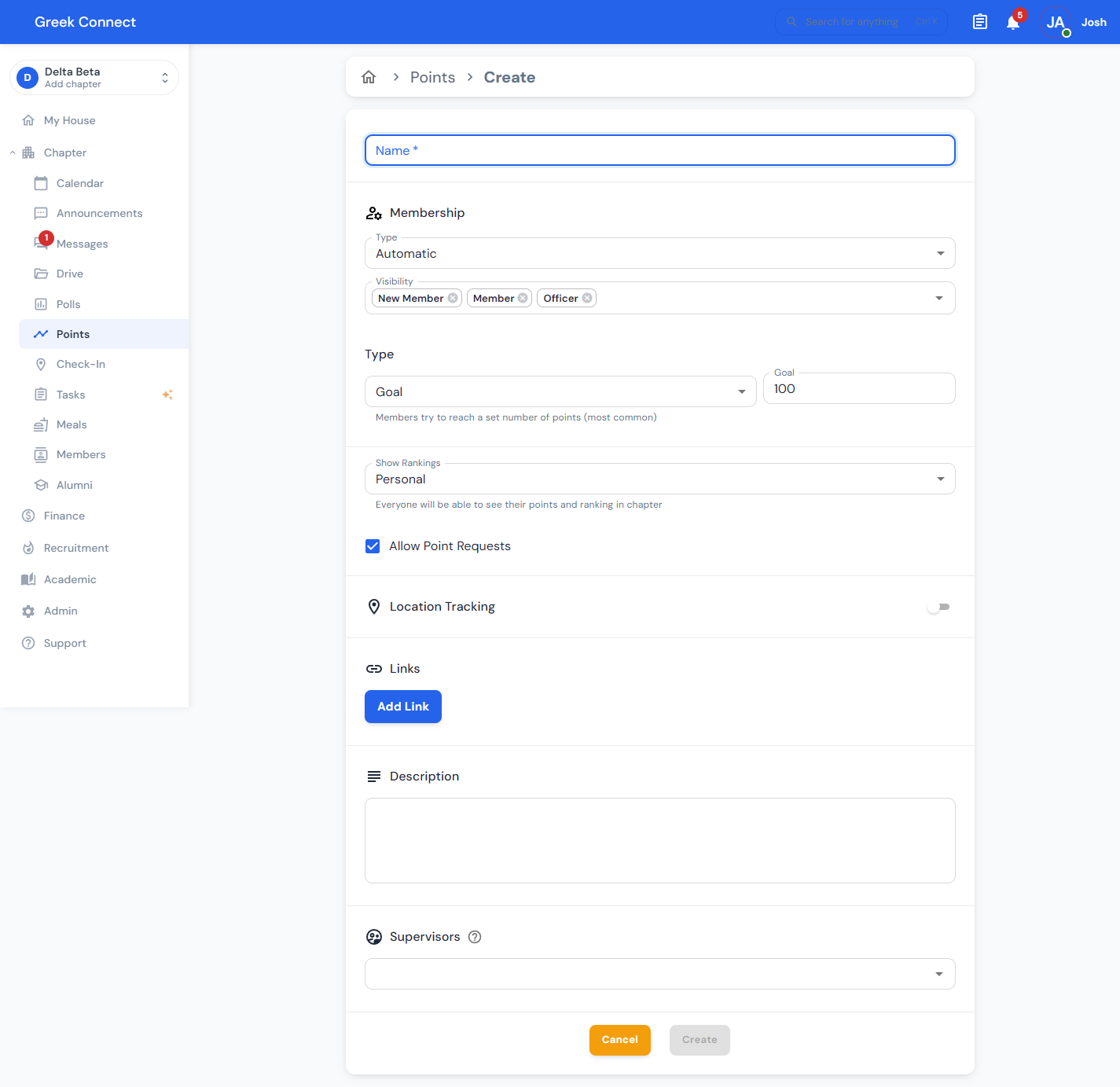
Give the system a Name, like "Service Hours" or "Study Hours", then work down the form.
Membership
Membership decides who has points in this system.
- Automatic includes everyone in the member statuses you pick under Visibility (for example, New Member and Member). People join and leave the system as their status changes.
- Custom includes only the people you add under Members. Use it for a committee, a pledge class, or a scholarship-probation list.
Type
- Goal: everyone works toward the same number, like 10 service hours. Members see their progress as a percentage. Most chapters use this.
- Maximum: members build up a running total with no set target. Use it for fines, social attendance, or a competition.
Show rankings
Pick how much of the leaderboard members can see:
- Personal: members see their own points and their place in the chapter. This is the default.
- Everyone: members see the full leaderboard.
- Only to admins: members see their own points but no rankings.
Public rankings work well for friendly competition. For anything that could embarrass someone, like fines or academic hours, choose Personal or Only to admins.
Point requests and location tracking
Leave Allow Point Requests on if members should be able to log their own points, such as volunteer hours done outside a chapter event. Officers review every request before it counts.
With requests on, you can also turn on Location Tracking (mobile app only). Add up to nine places, like the library or a volunteer site. For each one, drop a pin, set a radius, and choose how points accrue, for example 1 point every 60 minutes. Members start tracking when they arrive, and the app counts their time while they stay inside the radius. It's a good fit for study hours.
Links, description, and supervisors
- Links: attach up to 10, such as the bylaws section that explains the requirement.
- Description: tell members what counts and when the deadline is.
- Supervisors: officers with the Create permission who can award points in this system, like a philanthropy or scholarship chair.
Tap Create when you're done.
Award points
Members can earn points four ways.
1. Automatically from events
When you create or edit an event, add the Points option. Each rule has three parts:
- When: Present, Absent, Absent without excuse, Absent with excuse, Approved excuse, or RSVP'd
- System: which points system to credit
- Points: the amount, which can be negative
Present awards points when a member signs in. The absence rules apply once attendance is marked. For example, give +1 for Present and −2 for Absent without excuse, with up to six rules per event. Excuse rules need excuses turned on for the event, and RSVP'd needs RSVPs turned on.
To stop re-entering the same rules on every event, set Default Points for Attendance in Calendar settings. New events start with those rules filled in.
2. Member requests
Members open the system and tap Request points. They add a title, the number of points, the date, and optionally a description, minutes, and a photo or file as proof. A request doesn't count toward their total until an officer approves it.
3. Added by an officer
Open Chapter Stats, select a member, and tap Add points. Enter a title, points, and date. These are approved immediately.
4. Tasks and check-in maps
Tasks can award points when they're completed, and Check-In Maps award points each time a member checks in at a location. Set both up from their own screens, then choose this points system.
Approve requests
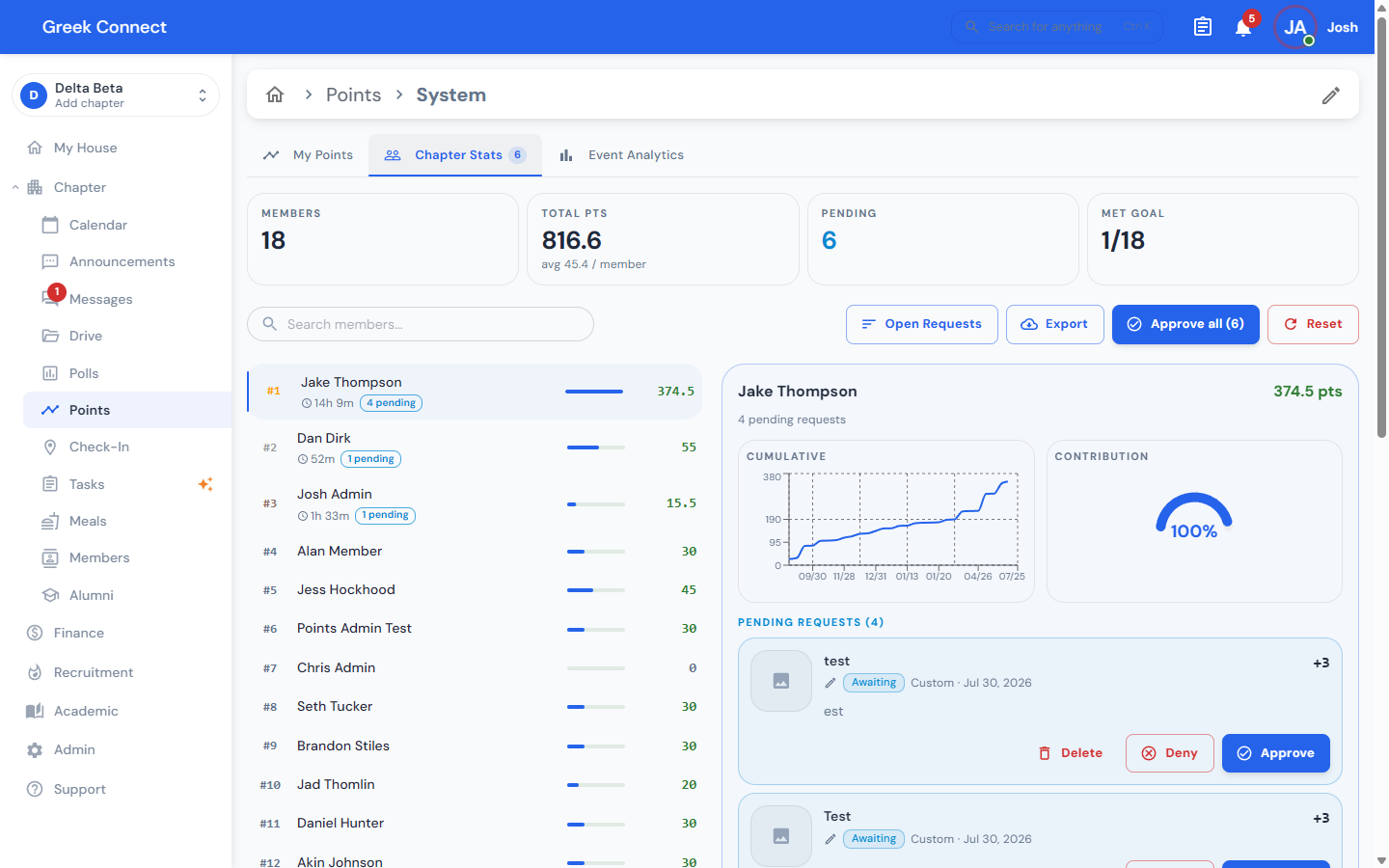
The Chapter Stats tab shows a badge with the number of pending requests. Select a member to see their requests, then tap Approve, Deny, or Delete on each one. To clear the whole queue at once, use Approve all in the toolbar.
If your chapter is linked to a headquarters organization that reviews points, requests are approved there instead. Officers can still add and delete points.
Track progress
- My Points: each member's rank, total, progress toward the goal, and a month-by-month history.
- Chapter Stats: the full leaderboard, searchable and sortable by points or open requests. Select a member to see a chart of their points over time and their recent history.
- Event Analytics: attendance trends over the past 12 months, with a breakdown of who attended and who missed each event.
Export and reset
- Export on Chapter Stats downloads the standings as a CSV. Export CSV on a member downloads just their records.
- Reset clears every point in the system and keeps its settings. It can't be undone, so export first. Resetting between semesters works well for most systems.
- To delete a system entirely, open it for editing and tap the trash icon. A system that tasks still award points into can't be deleted until those tasks point somewhere else.
Learn more about how Greek Connect's points system works for your chapter.