Overview
Create tasks effortlessly, with notifications, manual or automatic approvals, and document tracking
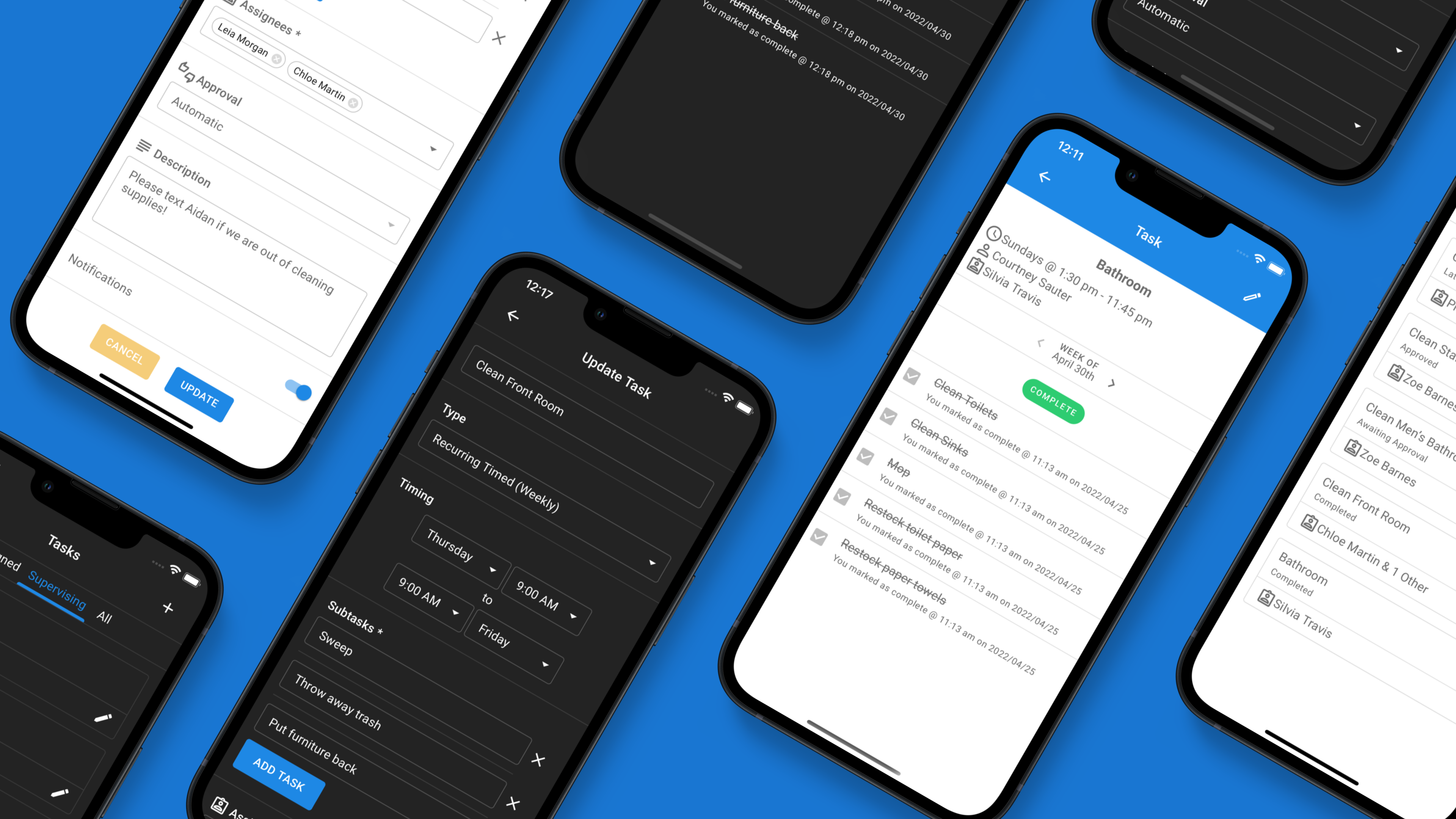
What Are Tasks?
Tasks let officers assign work to members — individually or by group — and track completion in real time. Whether it's submitting dues receipts, completing a required form, or responding to a poll, Tasks keeps everyone accountable with clear deadlines, status tracking, and optional approval workflows.
Key Capabilities
- Flexible Assignment: Assign tasks to entire member groups (New Members, Officers, etc.) or specific individuals. Group tasks automatically include new members as they join.
- Deadlines: Set optional deadlines so members know when work is due — overdue tasks are highlighted automatically throughout the app.
- File Uploads: Require members to upload a file (receipt, screenshot, document) as proof of completion. Files are stored in your chapter's Drive.
- Poll Integration: Link a poll to a task — when a member responds to the poll, the task auto-completes for them. No extra action needed.
- Approval Workflows: Require an officer or admin to review and approve each submission before it counts as complete.
- Points Awards: Automatically award points in any of your chapter's points systems when a task is completed or approved.
- Notifications: Members receive push notifications when tasks are assigned, approved, or denied.
Where Tasks Appear
- Tasks Page: The main tasks page shows "My Tasks" for members and "All Tasks" for officers with full management controls.
- Dashboard Feed: Outstanding tasks appear as cards in the home screen activity feed with your personal status and deadline.
- Header Drawer: A tasks icon in the top navigation opens a quick-view drawer of all your outstanding tasks.
- Approvals Feed: Admins see a dedicated approvals queue for submissions awaiting review.
Permissions
- Members: Can view and complete tasks assigned to them. See only the "My Tasks" tab.
- Task Creators: Can create tasks, view tasks they authored, and manage their own task settings.
- Task Admins: Full access — create, edit, delete, archive any task. Approve or deny any submission. Set chapter-wide task defaults.
Personal vs. Overall Status
When viewing tasks as a member, the status shown always reflects your personal completion — not the overall task progress. If you've completed a task, you'll see "Completed" even if other members haven't finished yet. Officers see the overall completion rate on the "All Tasks" tab.