Reports
Generate PDF expense reports for treasurer reporting and audits
Generating reports
Expense admins generate PDF reports from the Admin Dashboard. Tap Generate Report in the dashboard header, choose Annual Report or Monthly Report, and pick the year (plus the month, for a monthly report). Tap Generate to download the PDF. In the iOS and Android apps, the share sheet opens so you can save or send it.
Report types
Annual Report
Covers the selected year and includes:
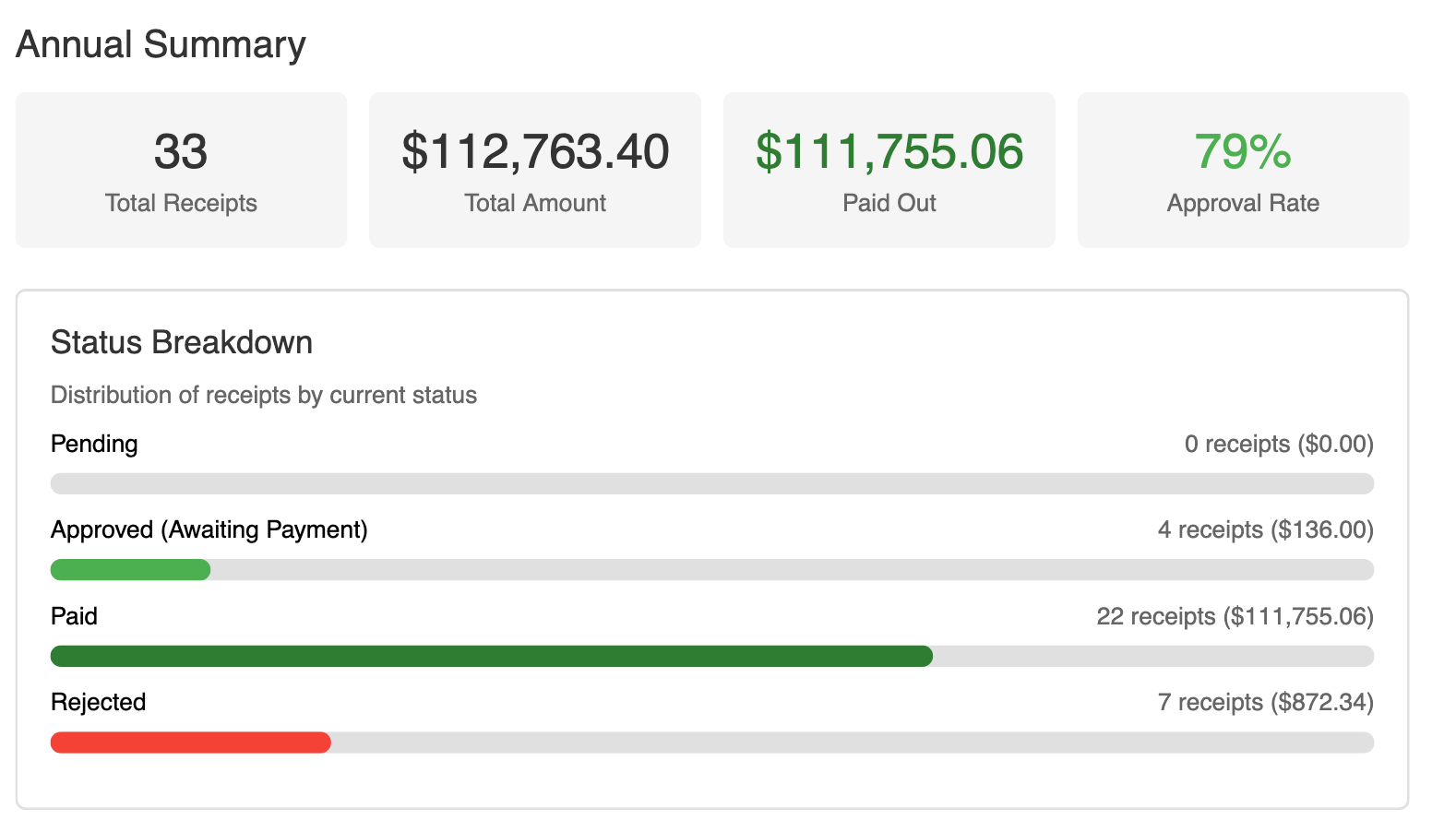
- Total receipts, total amount, amount paid out, and approval rate
- Totals by category, using your chapter's categories
- Spending by month
- Top submitters
Use it for end-of-year treasurer reports and chapter audits, or when your national organization asks for records.
Monthly Report
Covers the selected month, compared with the months before it, and includes:
- Receipts submitted, total amount, paid out, and pending, with change from the previous month
- Category comparison across months
- A 6-month spending chart
Use it at exec board meetings and budget reviews to spot spending trends.
What's in a report
A report includes every receipt in the period you pick, with totals by category and by status (pending, approved, paid, and rejected). The period comes from the Year and Month you choose in the report dialog. Dashboard filters don't affect it.
Who can generate reports
Chapter admins and roles with Expense Admin permission. Other members don't have access to reporting.
Tips
- Clear the Needs Approval tab before you generate a report, so pending receipts don't skew the totals.
- Run the annual report at the end of each semester or fiscal year for your records.
- Bring the monthly report to exec meetings to talk through budget trends and catch unusual spending.